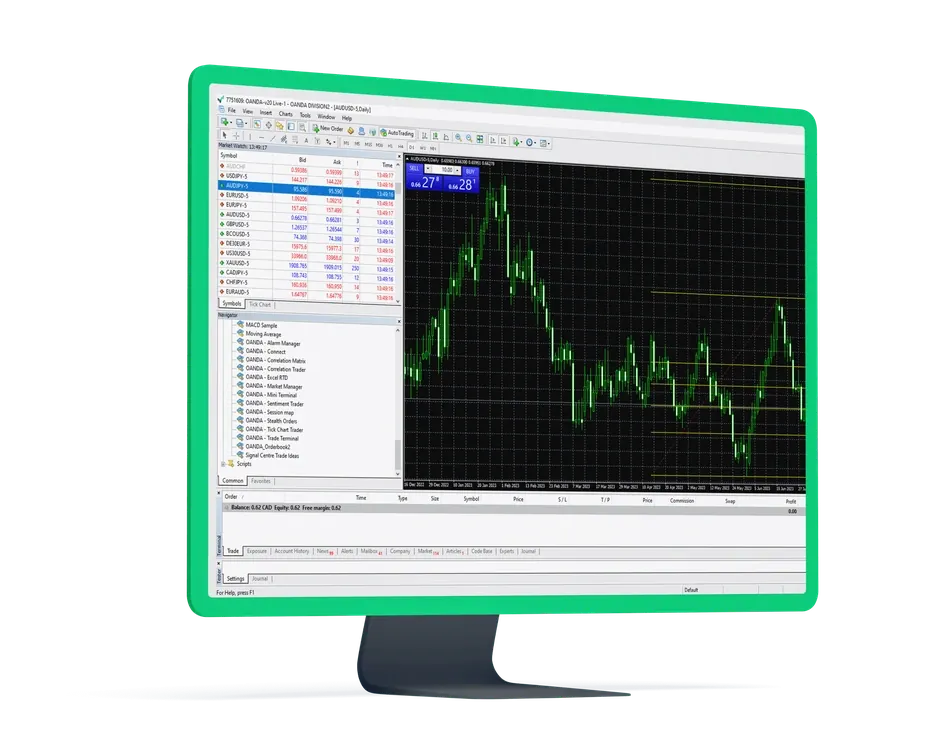
Download OANDA MT5

Bring market analysis, order execution and strategy development into MetaTrader 5. Build your desktop workspace with technical charts and MQL5 tools, then follow positions through compatible mobile and browser applications.

  • Desktop, mobile and web access
  • Chart analysis and automated strategies
  • Live and demo environments
OANDA MetaTrader 5 desktop trading platform

Desktop tools. Mobile access. Connected trading.

Use your computer for detailed chart studies and strategy development, your phone for positions on the move, or a supported browser terminal for account trading. Features and server connections depend on the OANDA entity providing your account.

Desktop trading

Work with multiple charts, custom indicators, Expert Advisors and historical strategy tests. This Windows download is provided for OANDA TMS; other OANDA clients should follow their own account portal’s download and connection instructions.

Download TMS desktop

MT5 for Mac

Connect a compatible account through the Mac application supplied by MetaQuotes. OANDA Asia Pacific does not support this application, and compatibility with your operating system, EAs and extensions must be assessed separately.

Download Mac application

iPhone and iPad

View market charts, place trades and manage supported orders from your phone or tablet. Open the App Store, search for MetaTrader 5 and connect using your account’s assigned trading server.

Visit App Store

Android trading app

Track prices, review account history and manage positions through MetaTrader 5 on Android. Open Google Play and search for the application; device requirements and availability are shown in your store region.

Visit Google Play

Browser trading

Access charts, orders and positions without running a desktop terminal through your account’s supported MT5 WebTrader. Your OANDA entity supplies the trading address; the button below starts an account application.

Apply for an account

MetaTrader 5 is developed by MetaQuotes; OANDA provides the connected account’s trading service. TMS, Asia Pacific and other entities use their own servers and account terms. Downloading the platform does not open an account or enable every market.

21timeframes
Chart periods from one minute to one month
38indicators
Built-in technical studies for desktop analysis
44objects
Drawing tools for price levels and chart patterns
MQL5tools
Strategy development, testing and automation

From a market view to a trading strategy

MT5 desktop brings charts, trading controls and program development into one environment. Study prices manually, define orders on a chart or turn a set of trading rules into an automated program.

Depth of market

View the quote levels and available volumes supplied for supported instruments. Market depth adds context to order size and liquidity, while actual fills depend on the execution conditions at the time of trading.

Economic calendar

Follow scheduled data releases and policy events alongside your charts. Use their timing and market context to inform research before and after an announcement.

Chart and one-click trading

Move from analysis to execution through supported chart controls and one-click orders. The feature uses your selected trade size, with execution subject to current prices and account rules.

MQL5 automation

Use MetaEditor to create Expert Advisors, scripts and custom indicators. Expert Advisors can monitor market conditions and submit permitted orders according to programmed rules.

Multi-threaded strategy testing

Test an Expert Advisor against historical data, compare parameters and review its behaviour across market conditions. Data quality, costs and execution assumptions affect the results; backtests do not predict live returns.

Autochartist analysis

Explore automatically recognised patterns and potential price levels through supported Autochartist integrations. Combine these findings with your own analysis rather than treating a pattern as a guaranteed outcome.

21 chart timeframesM1M2M3M4M5M6M10M12M15M20M30H1H2H3H4H6H8H12D1W1MN

A workspace built around your trading method

Arrange the markets you follow, add indicators that reflect your analysis and test programs against historical data. MT5 desktop connects strategy development with the charts, orders and reports used in daily trading.

  • Organise instruments and chart intervals into saved layouts
  • Extend your analysis with compatible MQL5 indicators and programs
  • Review strategy tests alongside actual trading records

MQL5 development

Write, compile and debug trading programs in MetaEditor. MT5 uses MQL5, so existing MQL4 code and compiled MT4 programs require adaptation rather than a direct transfer.

Expert Advisors

Automate defined trading rules while the desktop environment remains connected and authorised. Instrument restrictions still apply: OANDA Asia Pacific does not allow EAs to trade share CFDs.

Custom indicators

Apply your own calculations to chart prices and other data. Indicators display analytical results; placing orders automatically requires an appropriate trading program.

Autochartist integration

Add pattern recognition to your chart research where the service is available. Access, supported tools and integration versions depend on the OANDA entity providing your account.

Strategy Tester

Compare parameters, historical trades and drawdowns to assess how an EA behaves under specified conditions. Include realistic spread, commission and execution assumptions in the test.

Multi-chart layouts

Arrange charts across instruments and timeframes, then save your preferred setup. Running more charts, indicators and programs increases the demands on your computer.

Trade history and reports

Review executions, charges and account activity as part of your trading journal. Compare results with holding periods and position sizes to assess how a method performs in practice.

Orders and position controls

Use supported pending orders, stops and targets to structure a trade. Hedging or netting follows the account mode; ordinary stops can experience slippage during fast markets or gaps.

One trading account, access across devices

Develop and analyse on desktop, then use compatible mobile or browser applications to follow the same account. Positions and orders are recorded on the trading server, while local tools remain part of their own running environment.

  1. Connect your account

    Use the MT5 trading login, password and server supplied by your OANDA entity. These identify the trading environment and product permissions; they are separate from simply downloading the application.

  2. Explore with virtual funds

    Use a supported demo account to practise orders and test your approach. Demo balances have no cash value, and simulated prices or execution conditions may differ from a live account.

  3. Follow positions on the move

    View server-side positions and orders through compatible devices. Desktop EAs, custom indicators and client-side trailing-stop updates do not move to your phone when you sign in.

OANDA MT5 questions

Device access, account connections and strategy tools explained. For funding and other account matters, visit the OANDA FAQ.

Which MT5 download should I choose?

Choose the application for your device and follow your OANDA entity’s connection instructions. The Windows link here provides the OANDA TMS version, while the Mac application comes from MetaQuotes. Mobile buttons open the stores, where you can search for MetaTrader 5.

Can I use MT5 on a Mac?

MetaQuotes supplies a Mac application for compatible accounts. OANDA Asia Pacific does not support that application, so operating-system and program compatibility need separate consideration. A supported MT5 browser terminal may offer an alternative for account trading.

What do I need to log in to OANDA MT5?

You need the trading login, password and server assigned to your MT5 account. OANDA entities use different environments, and live and demo credentials must match the selected server. MT4 credentials cannot simply be used as an MT5 login.

Is downloading MT5 the same as opening an account?

No. MT5 is the trading software; account approval, funding and product access are handled by the relevant OANDA entity. Demo accounts use virtual funds. Live trades may incur spreads, commissions and financing, while third-party programs or subscriptions may cost extra.

Can mobile or WebTrader run my desktop EA?

No. MT5 mobile and browser terminals do not run desktop Expert Advisors or custom MQL5 indicators. They can display positions on the same compatible account, but the EA needs its own active desktop or compatible hosted environment.

Do strategy tests show what I will earn in live trading?

No. A backtest measures a program against selected historical data, parameters and execution assumptions. Real trading also involves changing prices, liquidity, costs and connection conditions. Test results should be assessed alongside risk and live execution records.

OANDA MT5

Bring your analysis into MT5

Build charts, test strategies and manage orders in a desktop workspace, with compatible mobile and web access for positions on the move.

  • Desktop and mobile trading
  • Technical charts
  • MQL5 and strategy testing